Wednesday, July 4, 2012

SGNote ICS Update: Beware of Battery Drainage

I have heard all over Internet that ICS Update for Samsung, whether it is for SGNote or SGS2 may cause further battery drainage. I can tell you know that on certain condition it is correct.

I have been using SGNote ICS 4.03 Update for awhile. First thing I noticed is that the multitasking went overboard. I consistently close apps by using ICS Task Manager manually, but it doesn't help. So I have installed Easy Task Killer at 15-minute apps killing interval. It helps a little. So I installed Trust Go Security for further apps killing and security, it helped with 4-hour interval. It did better, but to be safe I turned on System Power feature.

However, now I have found a new problem. The system sometimes freezes that the battery status from ICS failed to be updated. So, I have a choice of Rooting the SGNote to install Power On/Off Scheduler or find alternative method. So far I haven't found the right remedy. Rooting is not necessary the best solution since it might brick my SGNote if I set it up wrong. Plus, it void my warranty.

Anyway, I need advice or suggestion on this matter. Don't get me wrong. This battery power update failure doesn't happen often, only once in 2 or 3 weeks, but annoying nonetheless.

Oh yeah, here are the signs if your SGNote:
1. Data network failure. This means your battery has reached 20%, that is why ICS turned off data connectivity.

2. All apps go slower. That means the processor is working overtime and most likely power drainage is underway.

So there, I hope this one is helpful since you don't want your favorite phone suddenly goes off while the battery status said 60% but actually almost drained. I will update you for further development on the comment area of this article. Cheers

posted from Bloggeroid

Friday, June 29, 2012

Rumors: Samsung Galaxy Note 2

Since Google I/O is running now, rumors have been answered regarding Google Nexus 7, Google Glass, Jelly Bean or now known as Android 4.1, and more. However, it also raises more rumors. One that really gets my attention is of course the Samsung Galaxy Note 2.

So let!s recap the rumors that have been going around regarding SGNote2:
1. Earlier rumor: the Flexible Amoled

It was said in several gadget news portals that SGNote 2 will have similar form to SGS3, quad core (some said 1.4GHz, other 1.5GHz, even mentioning of 2GHz). The unique thing on these rumors, they all said SGNote2 will use Flexible Amoled that Samsung has been developing for the last half decade. Samsung did show case the flexible Amoled since last year in several of their major exhibitions. To be released in October 2012.

My take: I disagree with the flexible Ampled will be in SGNote2. I think it will kill SGNote2 if Samsung finally use it. Why? Imagine you are using your S Pen on a flexible Amoled screen. It won't work properly. All the coordinate will get screwed up on regular straight screen. So I must say? Samsung may be very aggressive and going balistic with the features in their Smartphones, but they are not that dumb to make such a critical mistake, especially with a surprise cult hit like SGNote.

2. During Google I/O rumor: unknown new processor (possibly quad core), 5.5" Amoled screen, similar specification on camera with technical improvements, slimmer and smaller body so it means an even larger screen to bpdy ratio (currently SGNote employs 66% screen). To be released in September 2012 (to face the possible release of iPhone 5).

My take: A more believable specification. Unfortunately, I never thought SGNote is the phone in that Apple is afraid of or worried about. SGNote occupies a niche market space, a blue ocean strategy of Samsung, since no factory in the right mind will ever touch a 5" screen phone after the sinking of a ship called Dell Streak. I think Samsung will launched SGNote in Q1 or Q2.

Just a side note, honestly, I think Samsung jumped the race by releasing SGS3 earlier than iPhone 5 to shake the ocean red, plus mocked HTC One X right in the middle of their media campaign.

Back to SGNote2 rumor, I must say that I am very excited, but September or October is way to early to jump to SGNote2. I don't think Samsung will be able to make significant improvement that will make SGNote goes up in the level.of anyone's phone like iPhone or SGS2 or SGS3.

Do you have another take or thought, feel free to share.

posted from Bloggeroid

Wednesday, June 27, 2012

ICS Productivity: Cloud Storage

The birth of Tablet Computer marked the climatic rise of Cloud Computing and Storage, especially for smartphones. Being relatively small in storage capacity, having additional Cloud Storage becomes a necessity rather than a luxury. With the decreasing and more affordable data plan from network provider, more and more smartphone and tablet users use Cloud Storage whether they realize it or not.

Android operating system was designed to utilize the Cloud Storage system. Once you log in to Google network, most of your data, contacts, calendars, emails, and photos are immediately synchronized (or in lamen language: stored) with the Google Cloud Storage via Gmail. This is useful when you use the data on other equipments, such as laptops or other phones you have. Even iPhone and iPad use similar system via MobileMe or Google.

The benefits of Cloud Storage:
- saving, backing up, synchronizing and sharing data across platforms (gadgets and OS)
- simplifying the process of smartphones or tablet replacement, such as buying a new phones
- enabling teamwork on documents across locations and platforms
- acting as emergency back up should your smartphones or tablets suddenly "died"
- and last but not least, simplifying data transfer, such as sending or sharing large documents.

Several Cloud services are.available in the Internet and the market place, most of them are free to a certain degree. The most popular, and notably useful, are: Dropbox, Google Drive, Microsoft LiveDrive, Evernote, and the Soonr. Each comes with different features that set them aside from each other.

Except for Microsoft's, I have used them all. This is my opinion based my experience in using them. Feel free to add, comment or object.

1. Dropbox

It is kinda an MLM based cloud storage. It also probably the simplest of them all. Just sync all files and folders within Dropbox Folder. So simple that you cannot go wrong with it. It has newer additional feature that benefits smartphone users: Camera backup via 3G, wifi or usb connections. I use Wifi since I meed to save my bandwidth quota. So, Dropbox in my SGNote immediately sync all photos in my Camera storage, microSD or phone, to my Dropbox and Dropbox download it to my Macbook.
Available in all OS platforms: smartphones, tablets, desktops, and laptops as long as you have Dropbox app. Starts with 1GB and growing with referral program.ine has reached 3.5GB.

2. Evernote

As the title says, it is originally a Note app that sync to the Internet and directly updates your computer(s). You can take picture with Evernote app on your phone and the photo immediately updated to whatever equipment linked to Evernote. Evernote has just updated their UI so it is more uptodate. The developers recently added modular app called Skitch to enable you to make handwritten notation.
The problem that I experienced that stopped me for using Evernote is the multiplication of documents when using Blackberry, especially for photos. Somehow Blackberry connection multiply The documents again and agian.
Available in all OS platforms: smartphones, tablet, desktop PC, and laptops. Starts with 1 GB storage.

3. Goodle Drive

Google finally joined in the Cloud Storage race by revamping Google Docs with extra storage. Probably the most compatible Cloud Storage with Android. It has the ability to share documents across Google network and even team project updates by multiple users. Also it is integrated with Gmail, Google Contacts, Picasa, etc. It will be interesting to how Google expand the GDrive.
Available in almost all OS platforms and growing. Starts with 5GB storage.

4. Soonr Workplace and Soonr Scribble

There are 2 versions:
- Soonr Workplace is pretty much similar to Dropbox with teM project sharing features
- Soonr Scribble is originally exclussive free app for SGNote. Now it is also available for other smartphones and tablets, but not for free.
The best feature of Soonr Scribble is its ability to annotate in all Microsoft Word, Excel and Powerpoint by using S Pen. The annotated documents will be saved in PDF format.
Availble in all OS Platforms. Starts at 1 GB storage.

Note: I have an article specifically for Soonr Scribble in this blog, check it out.

So decide which is the best for you and start cutting away your dependency on your computer harddisk. Enjoy.

posted from Bloggeroid

Friday, June 22, 2012

Polls: The Battles of Major Social Networks

I have joined them all and curious on what the world thinks is better. Please give comments on which Social Network is better? Twitter, Facebook, LinkedIn, Google+, or others?

Right now, I have come to like Google Plus and LinkedIn better. Don't get me wrong, I'm using G+, LinkedIn, Facebook and Twitter to promote this blog new articles. However, G+ is the one I open/access the most. LinkedIn being the second.

Let me know, guys. Thank you in advance.

posted from Bloggeroid

Thursday, June 21, 2012

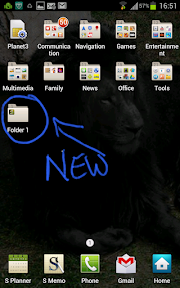
Interlude: How to Organize SGNote Home Screen and Apps Tray

Warning: For some of you, this article maybe too subjective on my personal comment. Thing of it as an input or advise, if you will.

I write this article because I saw my friend's SGNote Home Screens and Apps Tray are so cluttered and, my apology, messy. Regardless of the size of SGNote screen, random and cluttered screen(s) will make your life less emjoyable and SGNote won't fumction properly to your liking. It will be difficult to access an app anything since you need to find since, you will not remember where it is. I must admit Google has provided Search, but it is not a smart way to get organize. So I will explain how to use Folders on your Home Screen and Apps Tray. I believe most of you will find it very useful and even helpful later on.

First thing first, Folders are not new to ICS. In fact it is a feature in Gingerbread and Honeycomb. Since Foldering Apps is useful to get organize, this feature will stay.

For those who are iPad fans, yes Android copied this features from iOS. Then again, iOS copied Android Notification curtain, so :P.

Okay, let's go to what matters, how to use Folders the smartway. I will split the article imto 2 parts: Home Screen and Apps Tray. The way you make a Folder is different on those 2 areas. Before we start, there are preparation to be made:

1. Decide how you want to Organize your Folders.
For example, I organize all Work related Apps in a Folder called Office, all my games and multimedia apps (songs and video players) are in Entertainment Folder, etc.

2. How many Folders you want to make?
Less Folders doesn't mean it will be easier to find anything too since you still need to scroll down to find Apps you want to use. Use any numbers of Folders you think will make your life easier.


HOME SCREEN FOLDER

On your Home Screen, there are 3 things you can put on it: widgets, folders and apps shortcuts. So you need additional preparation on how you want your SGNote to function on each Home Screen.

Widgets are active apps running in front of Android system that always provide you with information or quick access on specific functions. Take a note that Widgets are active, so it will drain battery and sometimes Data Plan.

Shortcuts are similar to links. It's passive and only becomes active when you access it.

Folders are, well, I guess I can call it a box where you can put several Shortcuts together in accordance on how you want to organize things.

Rule:
- You cannot put Widgets into a Folder.
- You can drag and drop Shortcuts and Folders any where on the Home Screen for convinience.


How to make a new Folder:

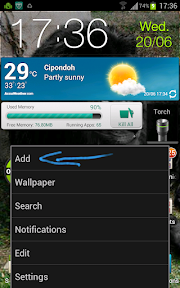
- On your Home Screen, which ever one, Touch Menu softkey (on bottom left outside of the screen) and a pop up menu will appear. Select 'Add'.


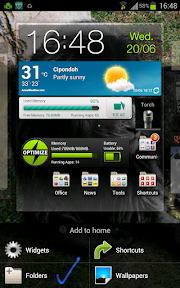
- A new menu will appear and shows several options. Choose Folder.


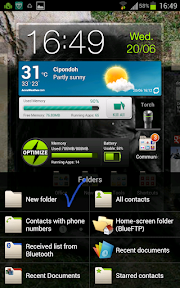
- Several Folders options will appear to identify what kind folder you want to make. Xhoose the empty one.


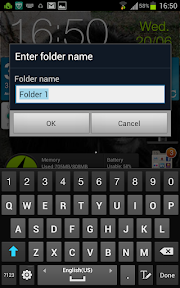
- Name the new folder as you planned.


Now, you are ready. All you need to do is to move (touch, hold and drag) you apps shortcuta into the Folder you have just made. Repeat the process for more Folders, like Games, Tools, Utilities, Web Shortcuts, Contacts Shortcut, etc.


APPS TRAY FOLDER

Now, let's see how you can make Folder(s) in your App Tray.

Similar to making folders on Home Screen, do plan ahead. Decide how you want to categorize your apps. How ever the rule is a bit different. In Apps Tray, the Folder gets created first then you change the name later, so you can always play around with more combinations.

Let's start:
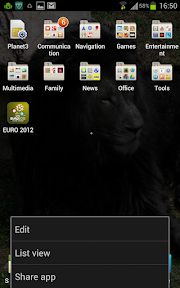
● Go into your App Tray. Touch the Menu soft button on the bottom left side below the screen. Choose Edit.


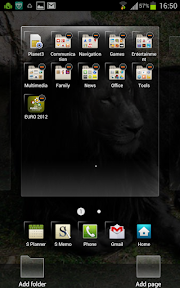
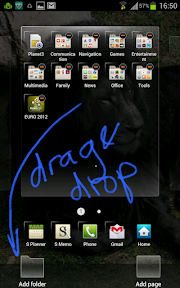
● The App Tray screen will change to Edit Mode. Note that there are 2 semi transparent boxes on left and right bottom of the screen. The left one says Add Folder.


● Now, drag and drop your apps accordingly to the first planned category. Repeat the process until you think it is enough. Note: Once the Folder created, you could always add more apps or move them in and out from the folder or even move to another folder.


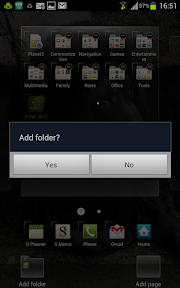
● Once ready to create the new Folder, Press Back soft button on the bottom right below the screen. A popup window will appear and ask you whether you want to add a new Folder. Choose Yes.


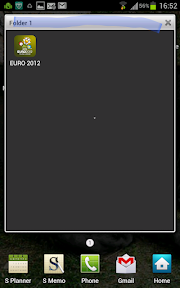
● Now you will have a new Folder named Folder 1.


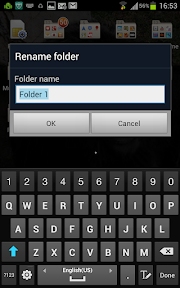
● Let's change the new Folder's name. All you have to do is open the new Folder. Touch and hold on the title bar of the Folder 1 window.


● A window will appear for naming the new folder. Just type in the new category that you have planned.


● Now you have a new Folder. Just drop and drag apps directly into that folder according to the intended category. Repeat the process to make more folders.


I'm not a perfectionist, but more of a practical person. By categorizing you apps and shortcuts into these folders, you will be able to acceas the easily and quickly without the needs to browse through pages of screens back and forth. Make your smartphone experience helpful to you life and enjoy it. Cheers!

posted from Bloggeroid

Saturday, June 16, 2012

Blogger by Google: Mobile App for Publishing Your Article to Blogspot

Here is the official Google App for Blogger: named Blogger. This one is also simple and light, so you don't need to worry about the app weighing down your SGNote.
It also has the ability to add images. Save your draft locally and access your blog(s).
Both have the same problems, they both don't link the app to Social Network which I hope they will soon.
In term of adding images, I like Bloggeroid better since I can move the location of the image to the my preferred location during the writing of the article.
However, it is all up to you, the users. They both simple and light weight. You can publish your almost Anywhere, almost any place, but don't blog and drive.


Bloggeroid: A Simple Tool Add Articles to Your Blogspot via SGNote

Probably you already know that there are several Blogger apps in the Play Store Market. I just want to share mine. I use Bloggeroid. I find it simpler and let hassle.


I doesn't have the most complete features, but I think what matters are:
- it can update the article correctly,
- backup your draft to SD card so I can finish it later,
- add pictures or photos to my article,
- I can utilize the large screen of my SGNote,
- and it must be simple to use.


If you, like me, prefer Blogger app that simple, light weight, and easy to use, try Bloggeroid.

Enjoy!!!

posted from Bloggeroid