Saturday, June 2, 2012

Side Note: Samsung Galaxy S3 Launching

In Jakarta today, 2 June 2012, Samsung launched the buzzed smartphone of the year: Samsung Galaxy SIII. The long awaited and much rumored phone since the success of the Samsung Galaxy SII.

My comment: Samsung Galaxy SIII is an impressive phone with tons of features and capability that makes other brands hide in shame.

However, as SGNote user I found thw combination of SGNote and SGS2 in SGS3 is an overkill. It's like shouting a challenge to all other competitors to try compete with Samsung mighty technology. This unit has SNote similar to SGNote. It has high resolution screen and very bright like iPhone. Superb camera with 8MP and Burst Mode to makw sure you get the right picture to challenge HTC OneX. The body is quite thin, although thicker than SGNote. The use of PolyCarbonate as the side body is a wise decision to make the too large-to-be-a-phone lighter.

All in all, for anybody who decides to switch to a new smartphone, try this phone. SGS3 won't disappoint you. For SGNote users, SGS3 is not worth it since the functionality of graphic manipulation with ICS upgrade on SGNote makes SGS3 only gets 75-80% of SGNote capability. For SGS2 users, only a little bit bigger but still not as slick and sexy as SGS2. For iPhone and Blackberry users, are you still using those ancient technology of smartphones?

There you go. I hope this is useful for you.

Friday, June 1, 2012

SGNote ICS Update: Task Manager

Here is something new and more user friendly, the Task Manager. For those who has used or try Samsung Galaxy Nexus, you have ttried it before.

Task Manager shortcut is using Home button press and hold. In Gingerbrwad version, a smal popup windows will appear and let you know what apps you have opened before and if you press the Task Manager icon, it will bring you to Task Manager Service apps. It is useful hut I cannot say that it doesn't make me want to use it often.

Anyway, in ICS

In ICS, I must say it makes, Google makes it much more useful and easier to manage. Just look at the picture below.


After you press and hold the Home Button, that screen will appear, in Honeycomb style. Once you have that screen, you can:
- open previously opened apps by selecting (touch) the app you want to access
- end or close previously opened apps to free.memory. This action is, probably the best feature added to ICS, very accessible. All you need is to touch and slide the app left or right to end its operation, thus free some memory.

Now isn't that makes this Task Manager function becomes the most accessed apps in ICS? Enjoy the tips and wait for more.

Monday, May 28, 2012

SGNote ICS Update: Power Button

Here is a small update that makes life easier:
1. Restart.
We all know once Android smartphpne has been running for several days, the memory ran out since some applications hog memory like there's no tomorrow. It is part of the risk of having multitasking smartphones. Now woth ICS update, they gave a Restart option when you press and hold power button. That makes my life easier.


Now, if only someone can make a reliable Restart Scheduler app, my life will be more complete.

2. Notification of Power Off

Regardless how good Gingerbread is, small things like how do you know when the phone is really off after you Power it down, do bugs me from time to time reqiiring me to rely on the LED light from the soft buttons to go off. Now, once the phone almost go off, it vibrates. That's it. How easy can that small, itsy bitsy, little thing makes life easier.

Enjoy the upgrade.

Saturday, May 26, 2012

SGNOTE ICS Update: Contacts

At first glance, there is only minor change. You can immediately see that the fonts used are slightly smaller and rather centered. However, underneath there are several major improvements. Samsung makes sure you noticed it by showing a tutorial popup the first time you open your Contacts after upgrading.

1. Easier acces to call or SMS.

By touch and hold the name that you want to call or sms, you can immediately call or SMS the person by:
- Swiping the name to the left to make the call.
- Swiping the name to the right to send SMS.

2. Shortcuts on Menu.

It used to be that several functions are buried in 1 or 2 layers of menu selections. Now, they are on first layer for easy access.

Have fun exploring. If you find other new features, give me a buzz. See you on next exploration.

Samsung Galaxy NoTe ICS Upgrade has FINALLY Arrived!!

The long waited upgrade to the mighty smartphone SGNote to ICS has finally arrived. As promised by Samsung, it includes the S Premium package.


I have just received the upgrade yesterday, which is a 300+ MB package, a tip: use a stable wifi connection. I'm still exploring the newer syatem. I will post the updates later on.

So far, here are things I have found new or improved:
- Improved Interface
- New S Note, the promised Samsung Premium App
- New Task Manager
- Improved Settings
- New Data Usage feature
- Improved battery icon on notification bar with percentage
- Improved notification
- Improved Power Bar on notification
- and more to come.

So hold your horses, I'll be back.

Tuesday, April 17, 2012

Security

Did you know that android, being open source operating system, is prone malware and spyware and, although rare right now, virus? Why? Because almost everyone can get the source codes of Android.

Well, if you have an Android phone or tablet like me, always install security applications. It will keep your smartphones or tablets safer.

Friday, April 13, 2012

How to Make Panoramic Photo with Samsung Galaxy Note

This is actually a simple trick. Samsung Galaxy Note has a built-in feature in the camera application that enables it users to take 180° Panoramic picture. Panoramic photo, for those not familiar with the term, is a technique of photography that pretty much glued several photos into a single continuous photo of your surrounding. See below for example.


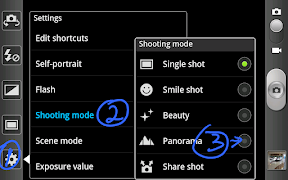
To activate the Panoramic picture, all you need to do is follow these simple steps:
1. Open Camera Application
2. Touch Setting icon on the screen to open setting options.
3. By default, the camera is set to Single Shot Shooting Mode. Touch the Single Shot and another menu pop out. Choose Panoramic.


4. Align your camera to the edge of the target and touch the Capture button/icon on the screen. You will take 8 photos and Samsung Galaxy Note will combined the 8 photos, or we usually called it frames, and produce 1 very long photo with 180° scenery of what is in front of you. Remember the camera move or pan from left to right whrn starting the Panoramic Mode, so always starts at left most scene you want to capture.

Have fun.